

Hi there! 😊
Let’s get your Google My Business account set up so we can work together to make your business shine online. This step-by-step guide will walk you through the process quickly and easily. Let’s do this!
Step 1: Log in to Your Google My Business Profile
- Start by logging into your Google account and opening your Google My Business profile.
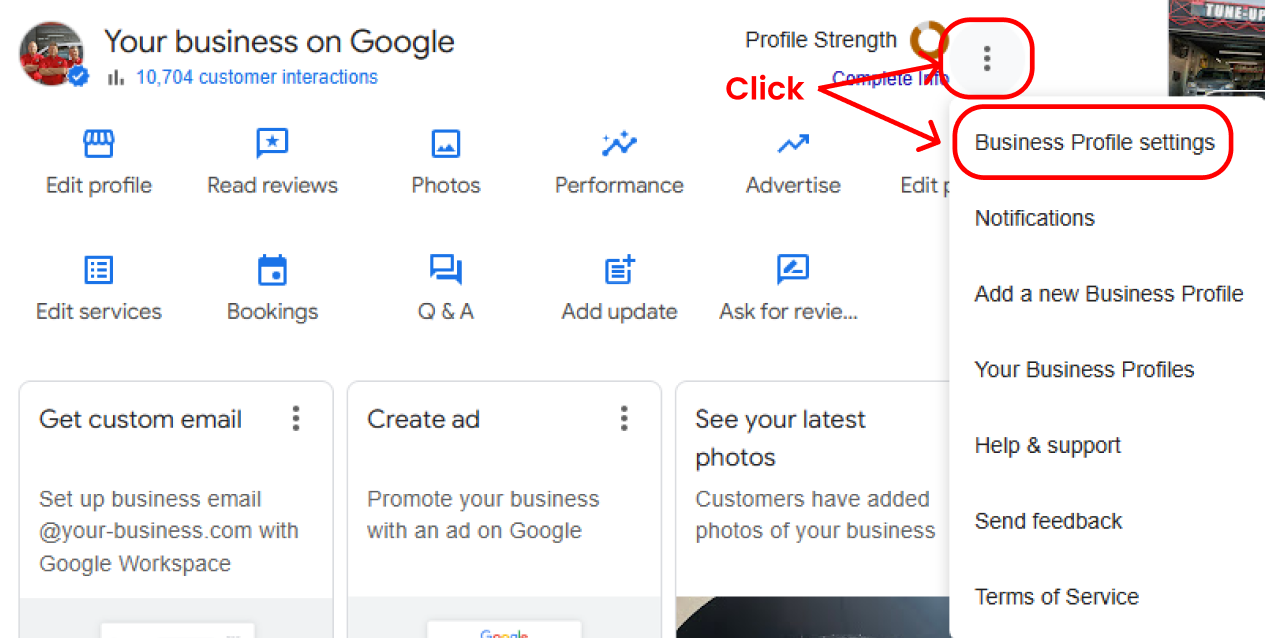
Step 2: Open Business Profile Settings
- On the top-right corner of your Google My Business dashboard, you’ll see three dots (⁝).
- Click on them, then select “Business Profile Settings” from the dropdown menu.
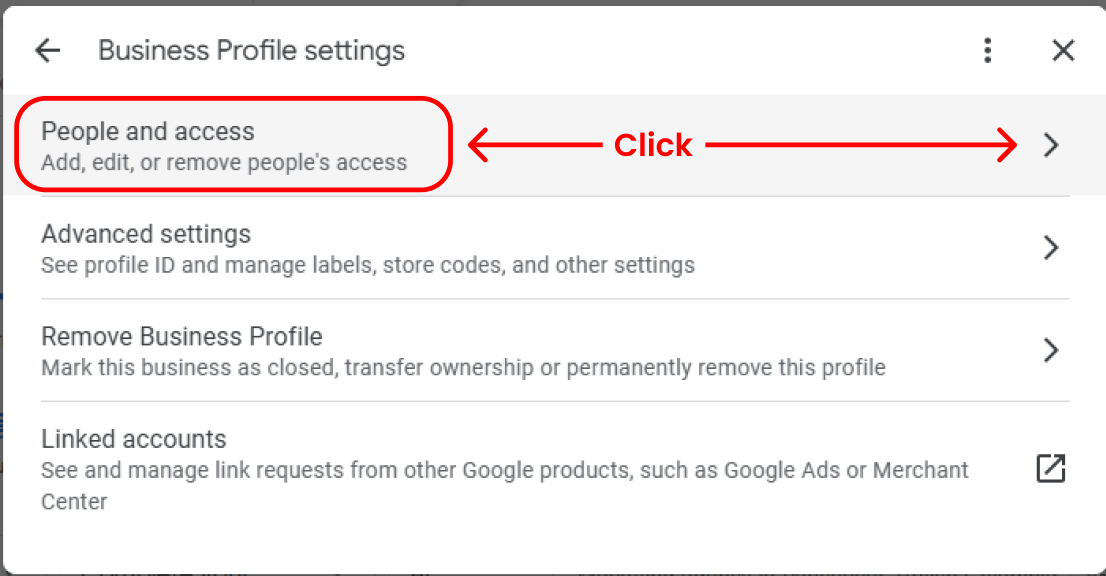
Step 3: Navigate to "People and Access"
- In the settings menu, look for and click on the option labeled “People and Access.”
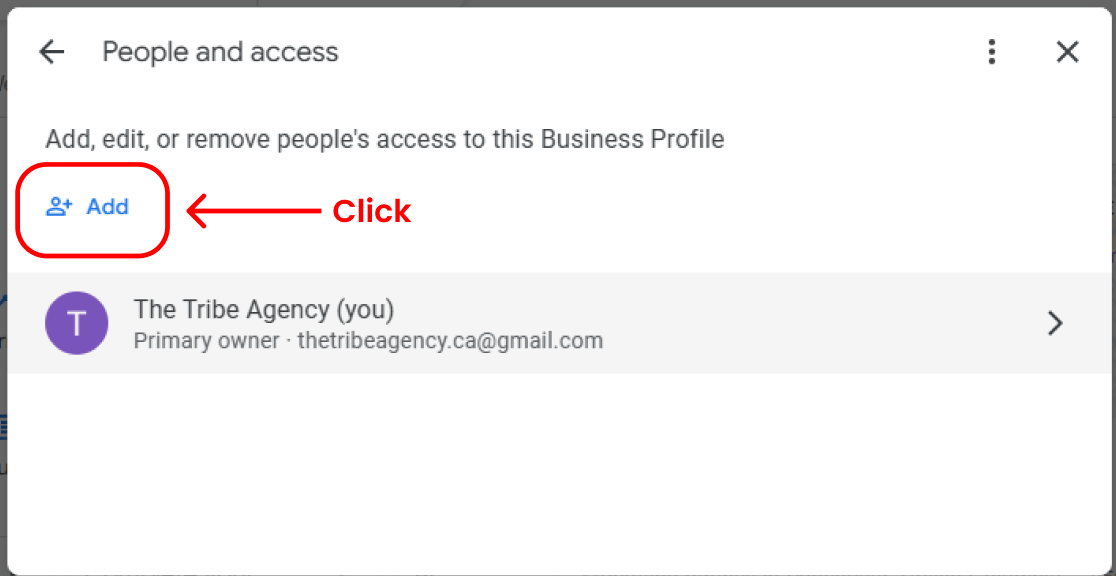
Step 4: Add a New User
- Once in the "People and Access" section, click on the “Add” button to invite a new user.
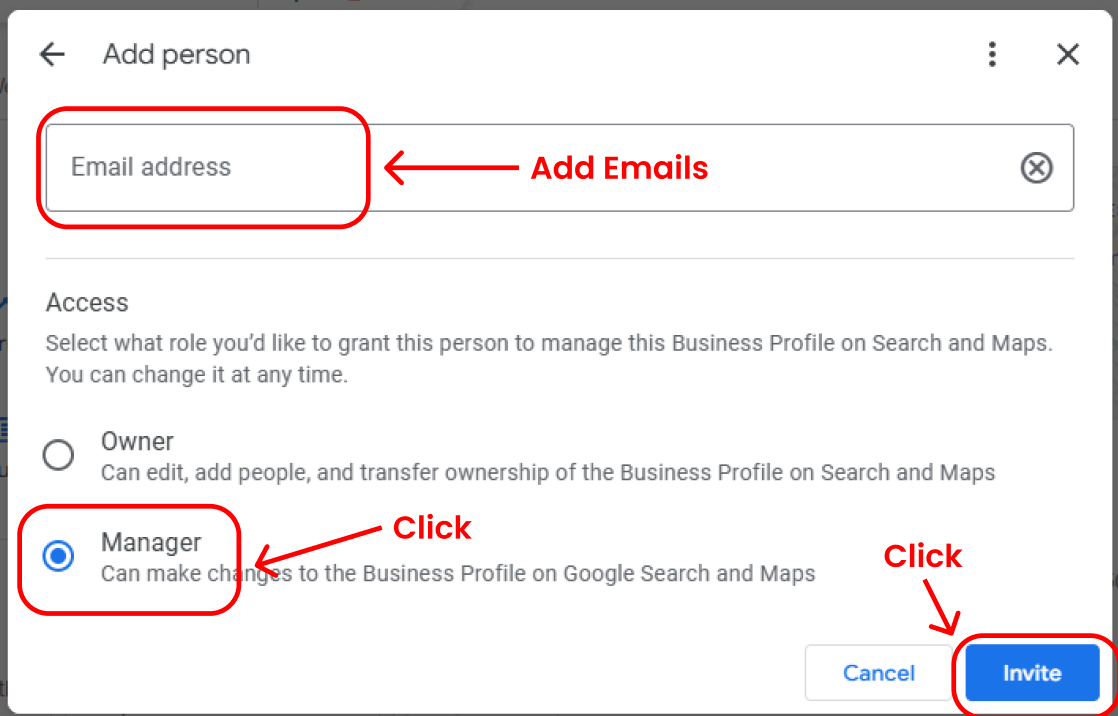
Step 5: Enter Our Email and Assign Access
- Add the email address we’ve provided for the project.
- Make sure to assign the access level as “Manager.”
- Double-check that everything looks good, then click “Invite.”
That’s It! 🎉
You’re all set! By granting us Manager access, you’re helping us take your business to the next level. If you have any questions or run into issues, let me know—I’m just a message away. Let’s make your business stand out! 🚀✨