

Hi there! 👋
Need to update the phone number on your Google Ads Smart Campaign? No problem! I’ll guide you through the process step-by-step so you can get it done quickly and easily. Let’s get started! 🚀
Step 1: Log in to Your Google My Business Profile
- Start by logging into your Google account and opening your Google My Business profile.
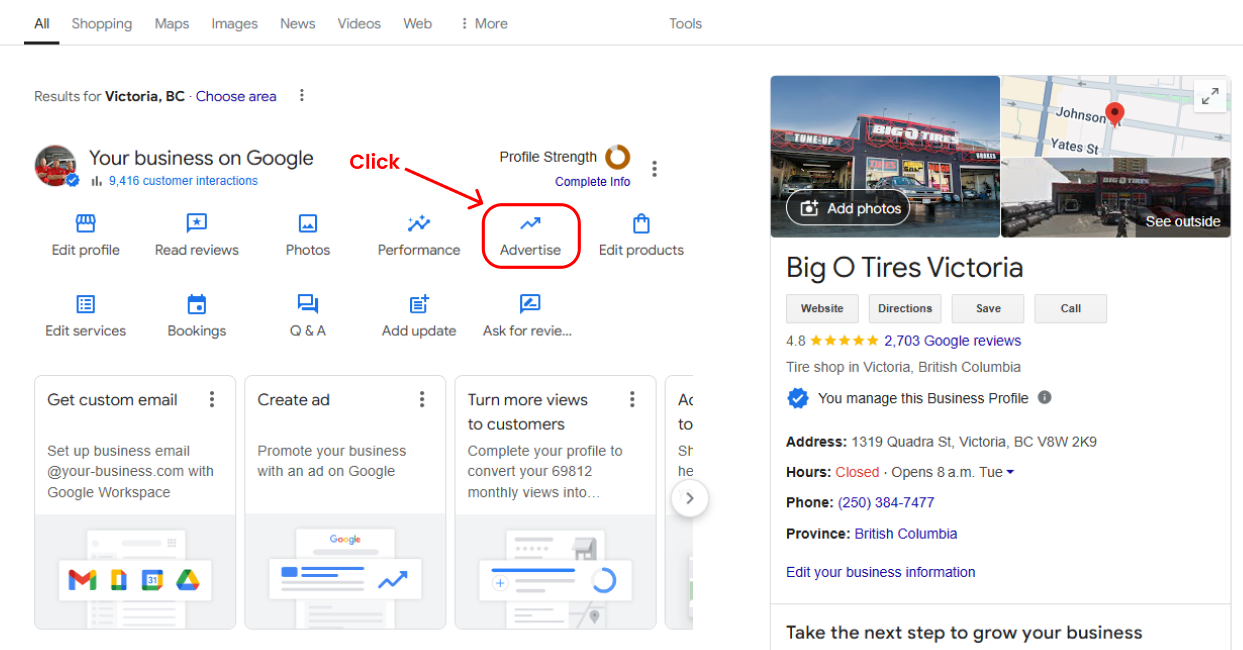
Step 2: Click on "Advertise"
- Once you’re on your Google My Business dashboard, locate the “Advertise” option and click on it.
Step 3: Access the Campaigns Section
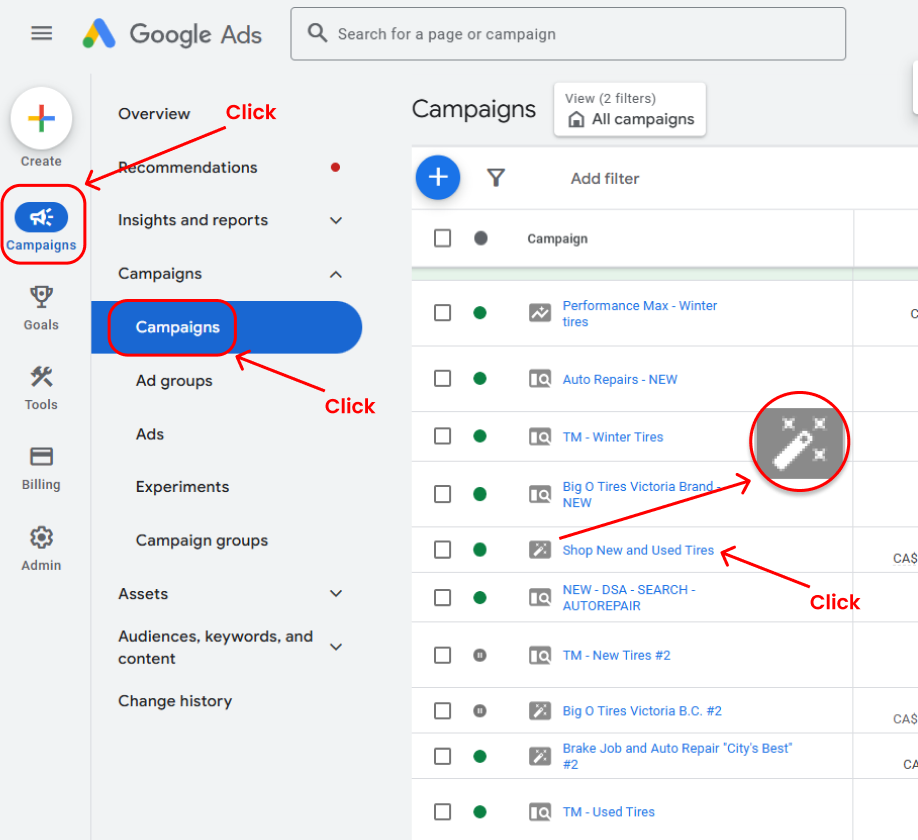
- On the left-hand menu, click on “Campaigns” and then select the “Campaigns” suboption.
- Look for the campaigns marked with the magic pencil icon, as these indicate Smart Campaigns.
- Click on the campaign you want to edit.
Step 4: Edit the Campaign
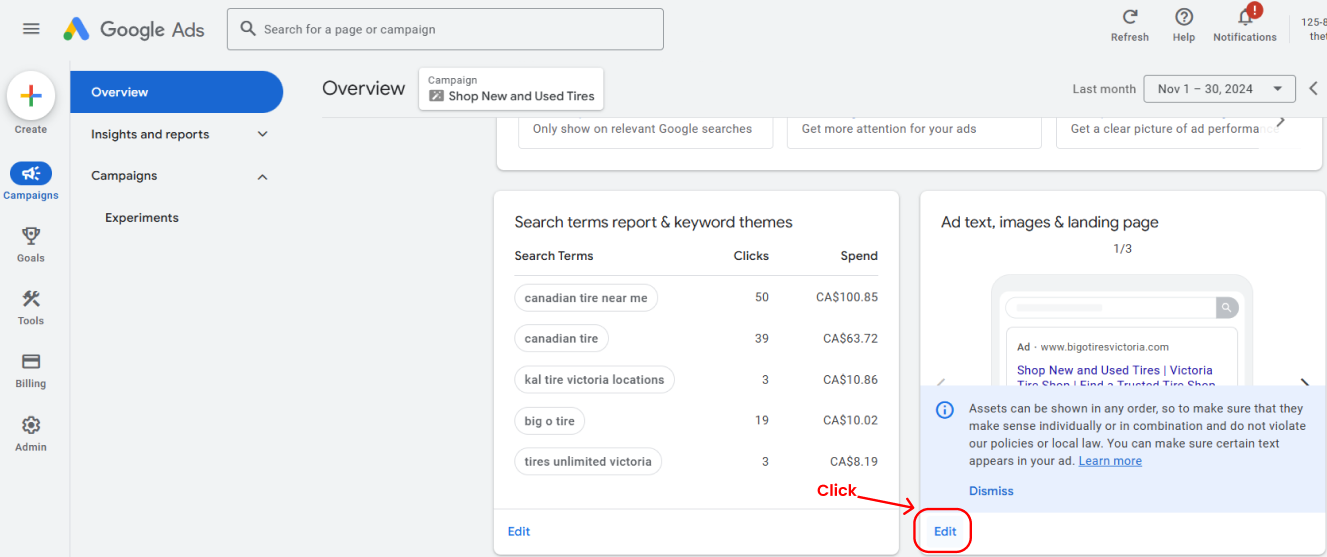
- In the section labeled “Ad Text, Images & Landing Page,” click the “Edit” button.
- This will take you to the campaign settings where updates can be made.
Step 5: Update the Phone Number
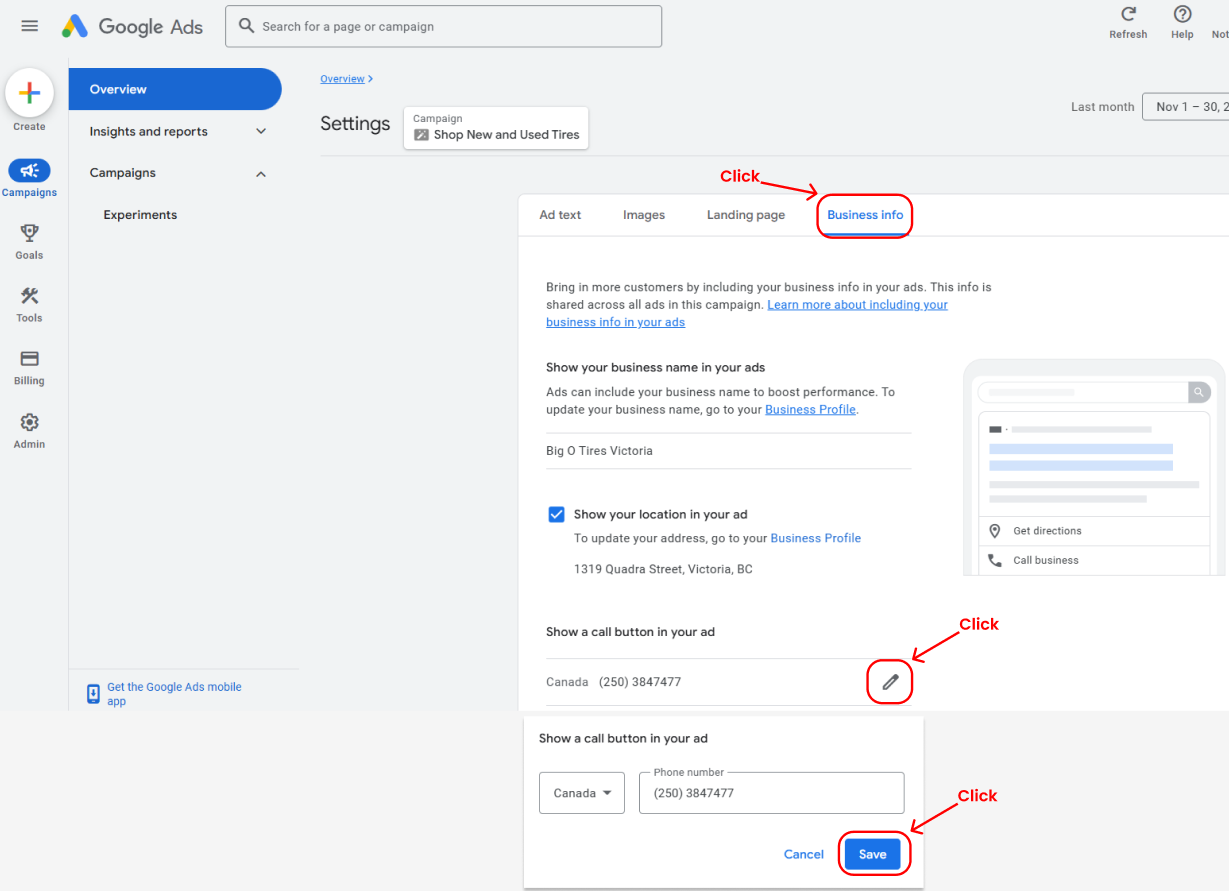
- Go to the “Business Info” tab.
- Locate the phone number and click the pencil icon next to it to edit.
- Enter the new phone number and double-check for accuracy.
- Once done, click “Save” to confirm your changes.
That’s It! 🎉
You’ve successfully updated the phone number for your Smart Campaign. If you need help or have any questions along the way, just reach out—I’m here to assist. Let’s keep your campaigns running smoothly! 🚀✨